Thursday, February 19, 2015

Data import process was unsuccessful

Solr indexing with remote DB

Issue : Data import process was unsuccessful. An unrecoverable error has occurred.


Then I increased timeout :

C:\WCDE_ENT70\bin> di-buildindex.bat -masterCatalogId 10001 -solrConnTimeout 20000

Then I got:
org.apache.solr.client.solrj.SolrServerException: java.net.ConnectException: Connection refused: connect

SOLUTION:

Connection setting in DB for SOLR was wrong in remote DB ( which is running in Linux)
I have to update the tables SRCHCONF and SRCHCONFEXT to point it to local toolkit server.

update SRCHCONF set config='IndexScopeTag=0,SearchServerPort=80,SearchServerName=localhost,PreProcessConfigDirectory=C:\WCDE_E~1\search\pre-processConfig\MC_10001\DB2' where indextype='CatalogEntry';

update SRCHCONF set config='IndexScopeTag=1,SearchServerPort=80,SearchServerName=localhost,PreProcessConfigDirectory=C:\WCDE_E~1\search\pre-processConfig\MC_10001\DB2\CatalogGroup' where indextype='CatalogGroup';

update SRCHCONFEXT set config ='SearchServerPort=80,SearchServerName=localhost';


Restarted server and it worked. 


Server and port names should match with workspace\WC\xml\config\com.ibm.commerce.catalog-fep\wc-search.xml

Wednesday, February 4, 2015

Customizing the agenda builder

       Customizing the agenda builder
Agenda builder in ibm wcs is If you want to change the default logic that selects potentially applicable promotions for evaluation, or to improve system performance by screening promotions prior to evaluation to reduce the number of promotions to be evaluated at runtime.A WebSphere Commerce instance has only one agenda builder. Customizations apply to all stores in the same instance.The agenda builder searches promotions directly related to shopping cart content rather than all available promotions in the system.This implementation requires data populated in the CATENCALCD, and CATGPCALCD table during the promotion authoring process that indicates the mapping between promotion and catlogEntry or category.If the store rarely has category-level promotions, then a flag can be set in the promotion engine configuration file for the agenda builder. The name of the flag is PerformCheckForCategoryLevelPromotions and it may have a value of true or false. If the flag is set to true, then a search is performed for any active category-level promotions in the store.

Customization steps:
1. Implement agenda builder. 
The only requirement is that your agenda builder must implement the com.ibm.commerce.marketing.promotion.runtime.PromotionExecutionAgendaBuilder interface. This interface is also a subclass of XMLizable interface. As a result, you must define the toXML and fromXML methods for your implementation, as well as a serialized XML form for your agenda builder.

2. Register the custom agenda builder in the promotion engine configuration.

1.         Edit the promotion engine configuration XML file in an editor. You can find this file in the following location:WC_eardir/xml/PromotionEngineConfiguration/WCSPromotionEngineConfig.xml
2.         Update the following code segment:
3.         <PromotionExecutionAgendaBuilder impl="
com.ibm.commerce.marketing.promotion.runtime.DefaultAgendaBuilder">
The segment in bold should be updated to reflect either the custom agenda builder, or one of the following agenda builders:
StorePathSupportedAgendaBuilder
This is the default agenda builder. It supports all of the WebSphere Commerce features and business models. To select this agenda builder, set the PromotionExecutionAgendaBuilder's impl parameter to:
com.ibm.commerce.marketing.promotion.runtime.StorePathSupportedAgendaBuilder
CodeDrivenAgendaBuilder
This agenda builder only builds a PromotionExecutionAgenda for promotions for which a promotion code is entered by a customer. To select this sequence builder, set the PromotionExecutionAgendaBuilder's impl parameter to:
com.ibm.commerce.marketing.promotion.runtime.CodeDrivenAgendaBuilder
DefaultAgendaBuilder
A former default agenda builder that does not support B2B business models. To select this sequence builder, set the PromotionExecutionAgendaBuilder's impl parameter to:
com.ibm.commerce.marketing.promotion.runtime.DefaultAgendaBuilder
ShopcartDrivenAgendaBuilder
This agenda builder searches for product-level promotions in the "ProductLevelPromotion" group that are directly related to the contents of the customers shopping cart, rather than searching all defined promotions. This agenda builder satisfies retail store check-out process requirements, which evaluate the promotions each time a product gets scanned. Therefore, it significantly decreases evaluation time. Other promotion groups, such as order-level promotions, still follow the default procedure.
This builder requires some predefined customer-based search algorithms for product-level promotions. The algorithm depends on the relationship between products and promotions in your store. This builder provides a WebSphere-Commerce-specific search algorithm, which uses a set of calculation-code-related tables, CATENCALCD and CATGPCALCD. To select this agenda builder, set the PromotionExecutionAgendaBuilder's impl parameter to:
com.ibm.commerce.marketing.promotion.runtime.ShopcartDrivenAgendaBuilder
You may also see the following agenda builder, which is not intended to be used directly:
PromotionExecutionAgendaBuilder
A dummy interface to facilitate customization. Any custom agenda builders must call this interface.
4.         Publish the updated configuration file to the production server
5.         Restart WebSphere Commerce. Since the agenda builder is initialized during WebSphere Commerce start up, a restart is required before the changes take effect.

Tuesday, February 3, 2015

websphere commerce useful urls

websphere commerce useful urls

Managment center (CMC): Out of the box user id password for admin wcsadmin/wcsadmin
https://localhost:8000/lobtools

Accelerator:
https://localhost:8000/webapp/wcs/tools/servlet/ToolsLogon?XMLFile=common.mcLogon&storeId=0

Admin Console:
https://localhost:8002/webapp/wcs/admin/servlet/ToolsLogon?XMLFile=adminconsole.AdminConsoleLogon&storeId=0


Org Admin Console:
https://localhost:8004/webapp/wcs/orgadmin/servlet/ToolsLogon?XMLFile=buyerconsole.BuyAdminConsoleLogon&storeId=0

Dynacache:
https://localhost:9043/cachemonitor/

WasAdminConsole:
    http://yourserver:9060/ibm/console or https://yourserver:9043/ibm/console

Start DM: Location:  /opt/IBM/WebSphere/AppServer/bin
./startManager.sh

Start Node Agent:
./startNode.sh -profileName
e.g. ./startNode.sh -profileName LIVE

SearchIndexSetup:
cd C:\WCDE_ENT70\components\foundation\subcomponents\search\bin
setupSearchIndex.bat -masterCatalogId 10001 -dbuser db2admin -dbuserpwd

PreProcessing: \bin
di-preprocess.bat C:\WCDE_ENT70\search\pre-processConfig\MC_10001\DB2\

Start server and run BuildIndex: \bin
di-buildindex.bat -masterCatalogId 10001

Validating build indexes:
http://localhost/solr/MC_10001_CatalogEntry_en_US/select?q=*

Validating build index for a catentryId:
http://localhost/solr/MC_10001_CatalogEntry_en_US/select?q=catentry_id:10086

SOLR home:
TOOLKIT_HOME\search\solr\home

SOLR web interface Console:
http://localhost:8080/solr/admin/index.js

ScheduleJob --->SOLRLoadCmd
Parameters: storeId=10054&catalogId=10001&langId=-1

Nifstack.xml:
Toolkit path: \properties\version\update\backup
Server path: /opt/IBM/WebSphere/CommerceServer60/properties/version/update/backup/NIFStack.xml

wc-server.xml:
Toolkit path: \xml\config\wc-server.xml
Commerce V7: \workspace\WC\xml\config

Local DB access:
http://localhost/webapp/wcs/admin/servlet/db.jsp

Server path: /opt/IBM/WebSphere/AppServer/profiles//installedApps/WC__cell/WC_.ear/xml/config
instance name would need to be replaced with the node name.

Friday, January 9, 2015

Performance analysis in IBM WCS

By using WebSphere Application Server Performance Monitoring Infrastructure (PMI) we can  monitor the performance of our WebSphere Commerce system. The WebSphere Commerce application server gathers statistics for URLs, tasks, and views. Each data key has an associated set of counters that provide information. For example, the average response time of a task, maximum and minimum response times, and the total number of times a task was called.

 Steps to enable WCS Performance module


Step 1
Enable WCS Performance module.
Edit WCDE_ENT70\workspace\WC\xml\config\wc-server.xml and ensure enabled="true" for following entry

<component compClassName="com.ibm.commerce.performance.monitor.PerfMonitor"   enable="true" name="PerfMonitor"/>

Step 2
Restart server
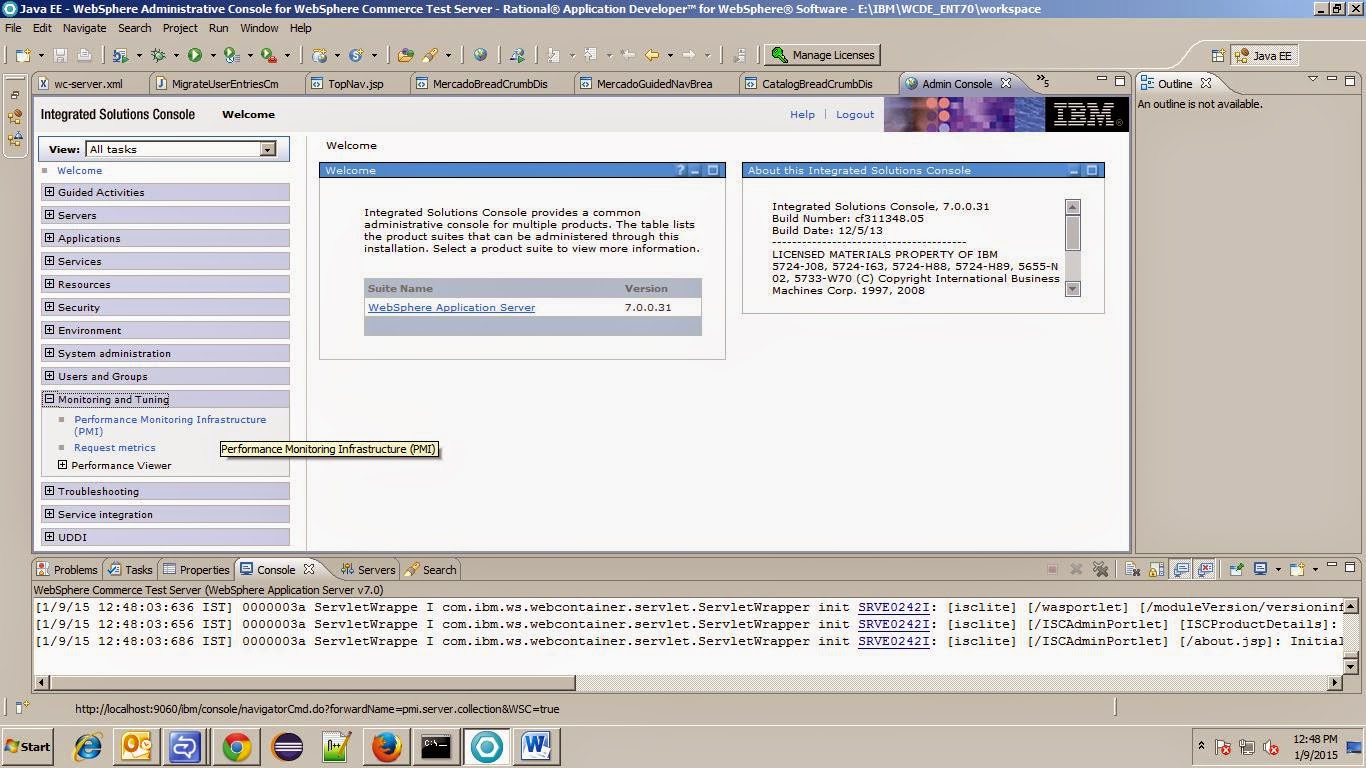
Open WAS console :


Select Server1 Under this check -
1.Select the Enable Performance Monitoring Infrastructure (PMI) check box.
2.Save and apply the change.


Now under monitoring and tuning - under performance viewer --> In current activity --> Select server1 and click on start monitoring.

By default Performance module for commerce is disabled, as shown in the screenshot below.


Follow this step to enable the module, select options as shown by the markers in the screen shot below.


 After selecting the custom option, now make selections as indicated by markers on the screenshot.


Now run the Tivoli performance viewer and collect statistics real time.


After some time you should be able to see the performance stats being plotted real time on the graph.


Using same steps we can enable other stats aswell.
Refrence :WCS PMI Module, WebSphere Commerce PMI module performance monitoring

Monday, January 5, 2015

Websphere Profile name is invalid Specify a profile name that exists on the server


Issue : After a project is added to the server, the WebSphere profile name field cannot be changed.

Resolving the problem

To modify the WebSphere profile name field in the server editor:
In the Servers view, right-click the WebSphere Application Server entry and select Add and remove projects.
Select the Remove All button.
Click Finish in the Add and remove projects wizard and allow for the changes to occur on the server.
Open the server editor by right-clicking the WebSphere Application Server entry in the Servers view and select Open.

Under the Server section, you can now select a valid and existing profile from the WebSphere profile name drop-down list (Go to Step 9 if there are no profiles available).
Save the changes in the server editor by typing Ctrl + s.
In the Servers view, right-click the WebSphere Application Server entry and select Add and remove projects.
Click Add All > Finish.
If there are no profiles available, you can create a new one using the Profile Management Tool:
First close the server editor
Select Windows > Preferences and click on the Server > WebSphere Application Server page.
 Select the server you want to create a profile for and click the Run Profile Management Tool button.
Open the server editor and you should see the new profile.

Refrence : Unable to edit the WebSphere profile name field after a publish failure using an invalid profile

Wednesday, December 31, 2014

Server side log configuration in IBM WCS

1.       Log Levels:
a.       To change the log level, go to the Server and right click on the Test Server and start the Admin Console.
b.      Go to the Server in the following path.
                                                               i.     


                                                             ii.     

                                                            iii.     


                                                           iv.     
                                                             v.     


                                                           vi.     

                                                          vii.     


Friday, December 5, 2014

The socket bind failed for host * and port 80

The socket bind failed for host * and port 80
Problem :
TCPPort       E   TCPC0003E: TCP Channel TCP_2 initialization failed.  The socket bind failed for host * and port 80.  The port may already be in use.

Resolution : You can stop the HTTP service temporarily from the command line:
From command prompt "run" : net stop HTTP
After running this command it will show dependent services and ask -- Do you want to continue this operation? (Y/N) [N]: Y
At last it will say : The HTTP service was stopped successfully.
Now In console you will not get this problem.


Another Approch :

When attempting to access the home page for one of the WebSphere Commerce starter stores (for example, ConsumerDirect), an error message displays. An example of the error message follows:
A WebGroup/Virtual Host to handle /webapp/wcs/stores/servlet/ConsumerDirect/index.jsp has not been defined.
The virtual host definitions in the WebSphere Application Server might not be functioning properly.
A simple test to verify this situation is to attempt to access the starter store's home page using port 8000 instead of port 80. For example if ConsumerDirect was published, try to access the store using https://localhost:8000/webapp/wcs/stores/servlet/ConsumerDirect/index.jsp. If port 8000 was successful then the virtual host definitions will need to be updated.
To change the virtual host definitions:
  1. Start the WebSphere Commerce Test Server using either the Rational Application Developer interface or using the startWCServer.bat script.
  2. Access the WebSphere Application Server's administrative console
  3. Select Environment > Virtual Hosts
  4. Select the default_host entry
  5. From the "additional properties" section select "Host Aliases"
  6. Delete the references to port 80 and 443
  7. Save your change to the master configuration.
  8. Restart the server.
You should now be able to access the starter stores using port 80.